 FlatRateChat
Guide · updated October 16, 2026
How to add an AI chatbot to a Wix site (2026)
There are three realistic ways to add an AI chatbot to a Wix site. All three work; they differ in setup time, who handles billing, and whether the chatbot answers from your website or from the open internet.
Option 1: An app from the Wix App Market (easiest)
Open your site’s dashboard, go to Apps → App Market, search for the chatbot you want and click Add to Site. Wix installs the script on every page for you and bills you through your Wix account. Settings live in your Wix dashboard. This is the only option with no code and no separate login.
What to check before you pick one: does the app answer from your site’s pages, or does it give general answers? Does it show your contact details when it does not know? Is the price a flat monthly number, or credits that run out? Best AI chatbot apps for Wix turns those questions into a checklist and compares five App Market apps.
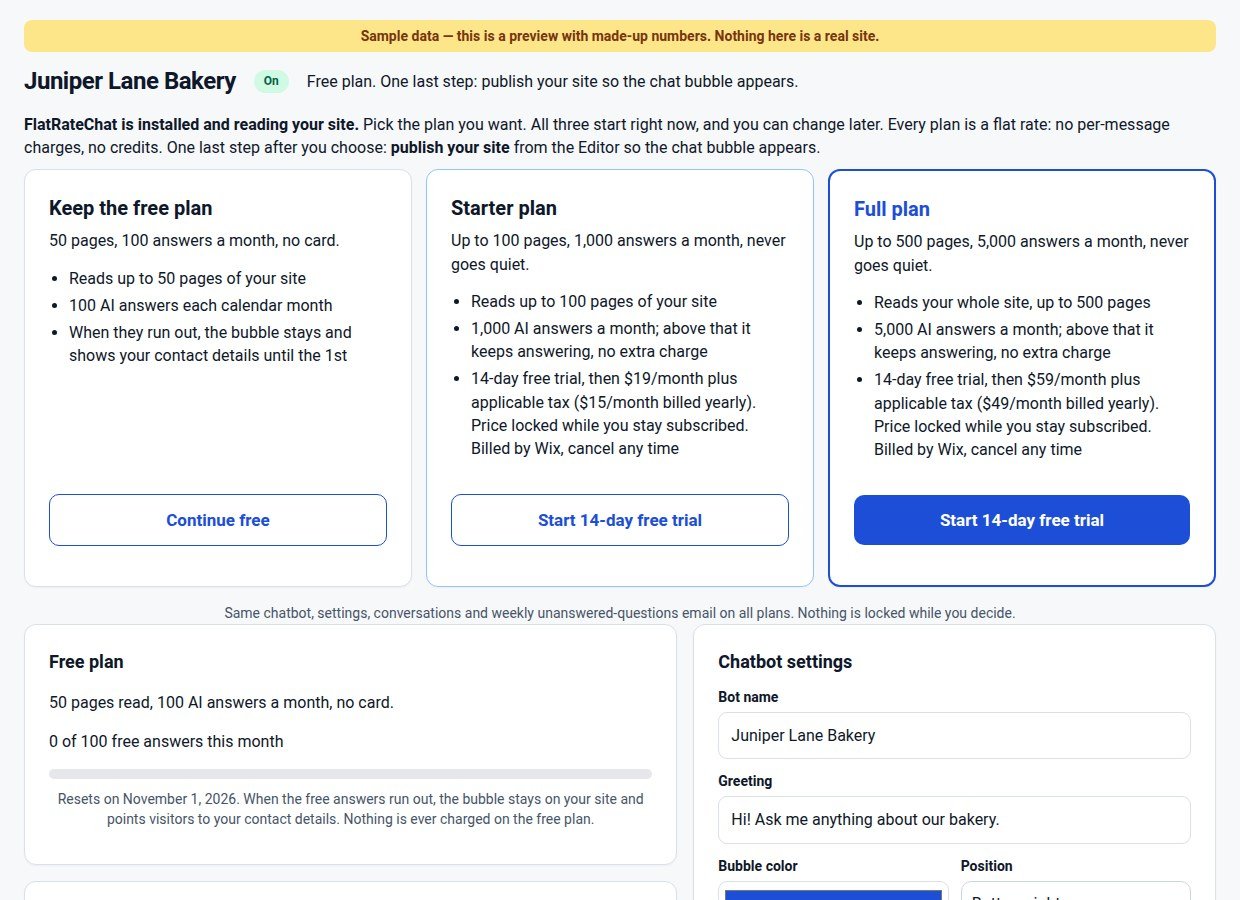
FlatRateChat is one of these apps, listed as AI Website Chatbot: a free plan with 100 answers a month, Starter at $19 a month (1,000 answers) or Full at $59 a month (5,000 answers), every plan flat, with the chatbot answering only from what your site says. The FlatRateChat for Wix page has the details.
Step by step, with FlatRateChat as the example
- Open the App Market from your Wix dashboard. In your site’s dashboard go to Apps, then App Market. Search for the chatbot you want. For FlatRateChat, search for “AI Website Chatbot” or open the listing link on this page.
- Click Add to Site. Wix installs the app’s script on every page for you. There is nothing to paste. Billing for any paid plan runs through your Wix account.
- Choose a plan on the first screen. With FlatRateChat you can keep the free plan (50 pages, 100 answers a month) or start a 14-day free trial of Starter or Full. The chatbot starts reading your published pages right away.
- Set colour, greeting and fallback contact. Open the app’s page in your dashboard. Pick the bubble colour and position, write a greeting, and confirm the email, phone or contact page to show when the chatbot does not know an answer.
- Publish your site and test on the live address. The bubble appears on the published site, not in the editor or preview. Ask it something your pages answer, then something they do not.
Option 2: Paste a script with Custom Code (connected domain needed)
If you use a chatbot service that gives you a <script> line, go to Settings → Custom Code → Add Custom Code, paste it, choose All pages and Body - end, and click Apply. Wix’s Help Center says your site must be published and have a connected domain, which in practice means a Premium plan (Embedding Custom Code, checked October 16, 2026). Billing and settings are on the chatbot service’s own site, so you manage two accounts.
This route is how most chatbot services that are not in the App Market get onto a Wix site. It works, but every price change, every re-read of your content and every support question goes through the vendor’s dashboard, not Wix.
Option 3: Build one with Velo
Developers can wire a chat UI to an AI service with Velo (Wix’s code platform) and backend web modules. It is the most flexible route and by far the most work: you handle the model, the content indexing, rate limits, abuse protection and the monthly API bill yourself. Reasonable for agencies; not for a single business owner.
Which option should you pick?
If you run the site yourself and want it done this afternoon, use the App Market. If you already pay for a chatbot service elsewhere and your Wix plan has Custom Code, paste its script. If you are an agency building something specific for a client, Velo gives you full control and the bills that come with it. Whatever you choose, run the test below before you tell anyone the chatbot is live.
Before you call it done: a five-minute test
- Open your published site, not the editor. Most chat scripts do nothing useful in preview.
- Ask a question that is answered on one of your pages. You should get the answer and a link to the page.
- Ask something that is not on your site. A good chatbot says it does not know and shows your contact details. A bad one makes something up.
- Ask the same question in another language. If visitors write to you in Spanish or French, the answer should come back in Spanish or French.
- Check it on your phone.
- If you use the Wix cookie banner, decline cookies once and confirm the page still loads cleanly without the bubble.
What it should cost
Flat monthly pricing means you can put the chatbot on your site and forget it. Credit-based pricing means a busy week can switch it off or trigger an extra charge. If you are comparing two apps, ask what happens on the day the credits run out. Wix chatbot pricing: credits vs flat rate goes through both models with current examples, and Wix Smart Chat alternatives covers how Wix’s own chat is metered.